


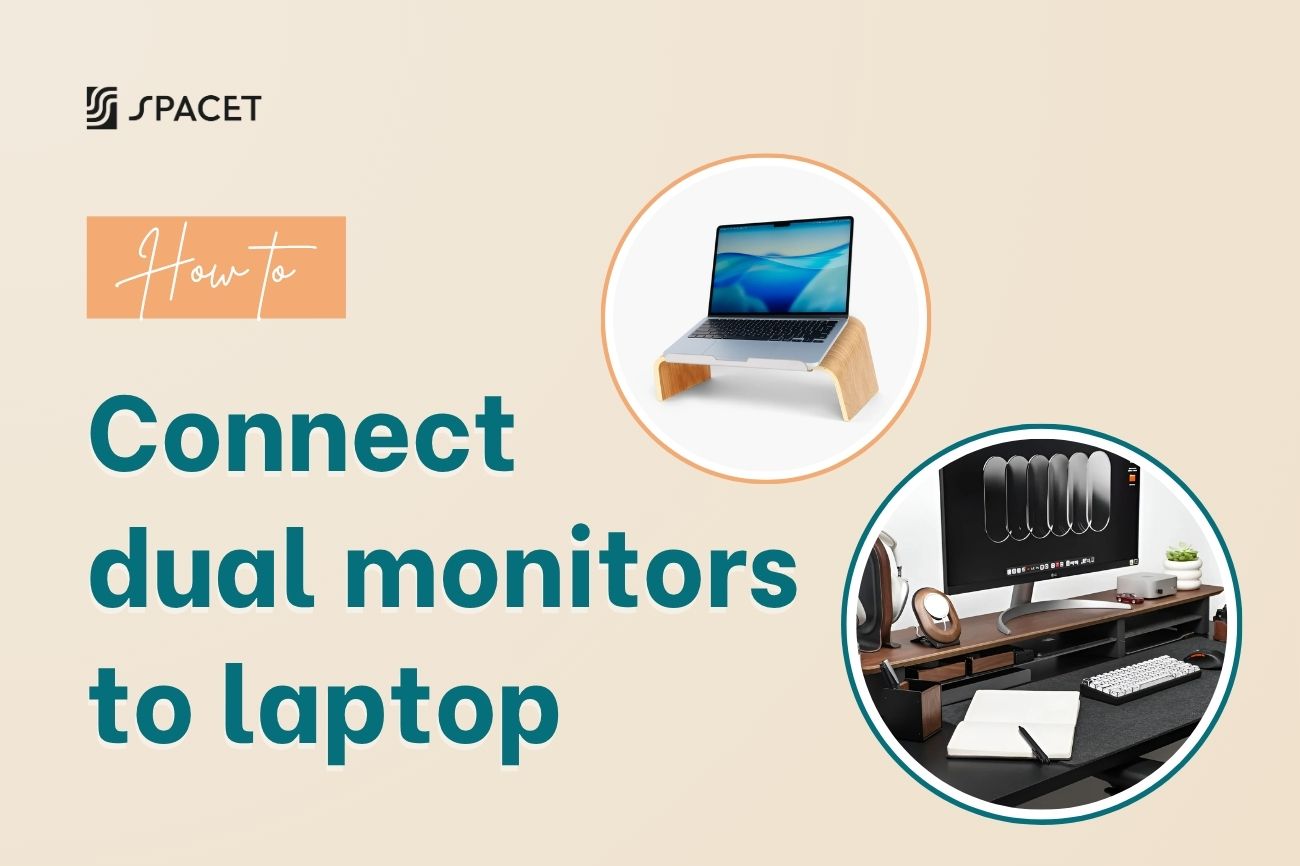
If you’re looking for how to connect dual monitors to laptop, the good news is it’s much easier than you think. With the right setup and a bit of understanding, you can turn your laptop into a clean, spacious, and highly productive workspace. And with the right setup approach from Spacet, you can go beyond just connecting screens and actually build a workspace that feels organized, efficient, and inspiring to use every day.
Why is a dual monitor setup worth it?
A best dual monitor setup is not just about adding another screen. It’s about changing how you work every day. With more screen space, you no longer need to constantly switch between tabs or stack windows on top of each other. Everything is laid out clearly, helping you stay organized and reduce mental overload.

For example, you can keep your research or emails open on one screen while focusing on your main task on the other. If you do creative work, coding, or anything that requires multiple sources of information, this setup helps you stay in the flow and avoid interruptions. Over time, this small change can lead to a big boost in productivity.
Check your laptop before connecting dual monitors
To fully understand how do you connect two monitors to a laptop, don’t rush into plugging cables right away. Taking a few minutes to check your laptop will help you avoid common mistakes and choose the right setup from the start.
First, look at the ports on your laptop. These are usually located on the sides of your device, where you plug in your charger or USB drives. Common ports include HDMI, USB-C, and sometimes DisplayPort. These ports are what send video signals from your laptop to external monitors.
One important detail is that not every USB-C port supports video output. You need to make sure it supports DisplayPort Alt Mode or Thunderbolt. You can check your laptop specifications on official websites like Microsoft, Apple, Dell, or HP. If your USB-C port doesn’t support video, your monitor won’t work even if you use a hub.
You should also check how many external displays your laptop supports. This will determine whether you can connect two monitors directly or if you need extra accessories.
How to connect 2 monitors to a laptop step by step
Method 1: Using built in ports
What are built in ports and where are they
Built in ports are the video output ports already available on your laptop. You can usually find them on the sides of your device. The most common ones are HDMI and USB-C with video support. This is the simplest method because you don’t need any extra device.

How to set up using built in ports
- Step 1: Prepare the right cables, such as HDMI or USB-C to DisplayPort, and make sure they support your monitor resolution
- Step 2: Connect each cable from your laptop to each monitor, and make sure everything is plugged in securely
- Step 3: Turn on your monitors and laptop, your system should detect the displays automatically
- Step 4: Open display settings, go to Display Settings on Windows or Displays on Mac
- Step 5: Select Extend mode, this allows you to use both screens as one larger workspace
- Step 6: Arrange your screens, drag them in settings to match your real desk layout for smoother movement
Method 2: Using a USB-C hub
What is a USB-C hub and when should you use it
A USB-C hub is a small device that expands your laptop’s USB-C port into multiple ports, including HDMI and USB. It’s a great option when your laptop does not have enough video ports or when you want a cleaner setup with fewer cables.

How to set up using a USB-C hub
- Step 1: Choose a hub that supports dual monitors, with at least two video output ports
- Step 2: Plug the hub into your laptop via USB-C
- Step 3: Connect both monitors to the hub using the appropriate cables
- Step 4: Provide power to the hub if required, for stable performance
- Step 5: Go to Display settings and select Extend, then adjust your screen layout
Method 3: Using a docking station
What is a docking station and when should you use it
A docking station is a larger and more powerful version of a hub. It usually has its own power supply and works as a central connection point for your entire workspace. You can connect monitors, keyboard, mouse, and other devices to it, then link everything to your laptop with a single cable. This is ideal if you want a stable, long term, and professional setup.

How to set up using a docking station
- Step 1: Choose a docking station that works with your laptop
- Step 2: Connect both monitors and other devices to the dock
- Step 3: Connect the dock to your laptop with a single cable
- Step 4: Open Display settings, select Extend, and adjust screen positions
Spacet products to complete your dual monitor setup
Once you’ve finished connecting your monitors, the real difference comes from how you organize your workspace. A dual monitor setup can easily look messy if not arranged properly. With the right setup, though, it can become a clean, structured, and inspiring workspace. That’s exactly what we focus on at Spacet.
Spacet products that make a difference:
- Desk Shelf Pro v2.0 and AIRY Modular Desk Shelf: lift your monitors to eye level to reduce neck and shoulder strain during long hours, while also creating extra usable space underneath for your keyboard or accessories, helping your desk feel cleaner and more structured overall
- Monitor Stand v2.0: adjust each screen more precisely to match your natural viewing angle, which helps improve posture and makes switching between screens feel smoother and less tiring throughout the day
- Desk Shelf Tray: keep small items organized in one place so they don’t clutter your desk, while also adding a subtle layer that makes your setup look more intentional and easier to maintain daily
>> Find more products to refine your setup in the Spacet Collection Line-up

Understanding how to connect dual monitors to laptop is the first step to expanding your workspace. But the real value comes from how you use and organize that space. That’s exactly what we aim to do at Spacet, not just helping you set up your desk, but helping you build a better everyday work experience.

Share: