


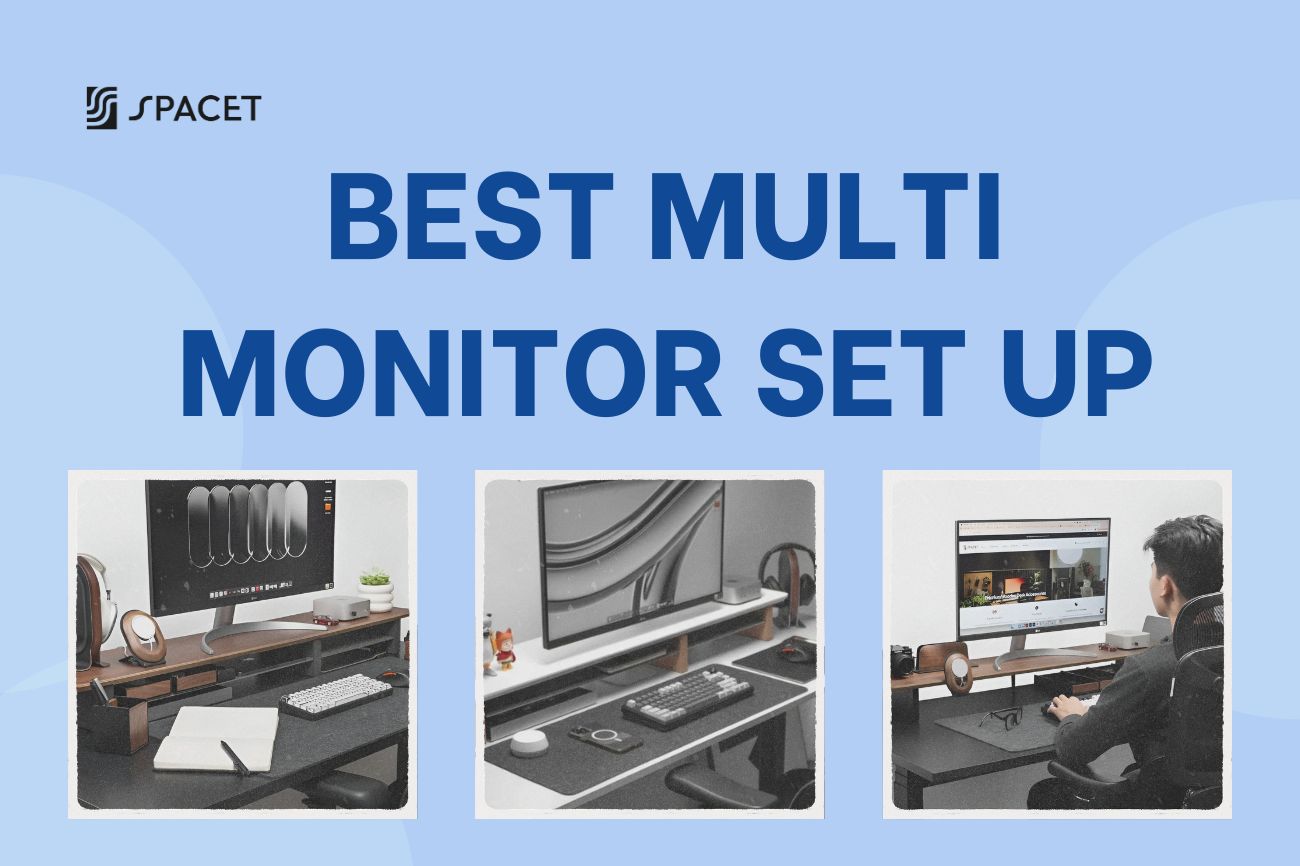
Une bonne configuration multi-écrans vous aide à étendre votre espace de travail et à réduire considérablement les changements de fenêtre constants. Spacet vous aidera à choisir la bonne configuration, à comprendre comment installer plusieurs moniteurs et à optimiser votre espace de travail de manière facile à appliquer.
Pourquoi une configuration multi-écrans est-elle un « point d'appui » pour la productivité ?
Une configuration de plusieurs moniteurs ne consiste pas seulement à ajouter plus d'écrans, mais à réorganiser tout votre espace de travail. Lorsque chaque écran a un rôle clair, vous n'avez plus à « faire des compromis » entre les fenêtres, ce qui vous aide à rester concentré et à travailler plus efficacement.

Dans les espaces de travail modernes, en particulier avec la généralisation du télétravail, l'utilisation de plusieurs moniteurs est devenue la norme. Lorsque toutes vos informations sont visibles en même temps, vous pouvez réduire considérablement le temps de commutation et maintenir votre flux de travail plus longtemps.
Configurations multi-écrans courantes
Il n'existe pas une seule « meilleure » configuration pour tout le monde. L'essentiel est de choisir la configuration qui correspond à votre façon de travailler, et voici comment nous l'abordons généralement lors de l'optimisation des espaces de travail réels.
Configuration à deux moniteurs
Une configuration à deux moniteurs est la mise à niveau la plus facile pour commencer, mais elle offre une amélioration notable. Avec deux écrans, vous pouvez séparer vos tâches principales des tâches secondaires au lieu de tout entasser sur un seul écran.
En pratique, cette configuration fonctionne mieux lorsque un écran est votre espace de travail principal, tandis que l'autre le prend en charge. Par exemple, vous pouvez travailler sur votre écran principal et garder vos e-mails, documents ou réunions sur le deuxième écran, créant ainsi un flux de travail plus fluide.
>> En savoir plus : Le guide ultime pour créer la meilleure configuration à deux moniteurs
Configuration à trois moniteurs
Lorsque votre travail implique plusieurs sources d'informations en même temps, deux moniteurs peuvent rapidement sembler limités. L'ajout d'un troisième écran vous offre non seulement plus d'espace, mais vous permet également de mieux structurer votre façon de travailler.
Typiquement, le moniteur central est utilisé pour vos tâches principales, tandis que les deux moniteurs latéraux gèrent les références, les aperçus ou les tableaux de bord. Cette configuration vous permet de gérer plusieurs tâches simultanément sans basculer constamment entre elles.
>> En savoir plus : 3 idées de configuration à 3 moniteurs : plus de 15 façons de maximiser l'efficacité et le confort
Configuration à quatre moniteurs
Si votre travail nécessite de gérer plusieurs flux de données en même temps, une configuration à 4 moniteurs peut être extrêmement efficace. Cependant, il ne s'agit pas d'une situation « plus il y en a, mieux c'est », cela ne fonctionne bien que si vous avez un flux de travail clairement défini.
Au lieu d'empiler plusieurs fenêtres sur un seul écran, vous pouvez attribuer chaque moniteur à une tâche spécifique. Cela vous aide à garder le contrôle et réduit la charge mentale liée au traitement de trop d'informations à la fois.
>> En savoir plus : Comment créer la configuration parfaite à 4 moniteurs pour le travail et le jeu
Configuration de moniteur vertical
Une configuration de moniteur vertical est particulièrement utile si vous travaillez fréquemment avec du contenu long comme du code ou des documents. En faisant pivoter l'écran verticalement, vous pouvez voir plus de contenu à la fois.
>> En savoir plus : Guide complet de la configuration de moniteur vertical : Productivité et confort

Cela réduit le besoin de défilement constant et vous aide à rester concentré, surtout lorsque vous travaillez sur des tâches qui nécessitent de la lecture et de l'analyse.
Configuration de moniteurs empilés
Lorsque l'espace de bureau est limité horizontalement, une configuration de moniteurs empilés devient une solution très pratique. Au lieu de placer les moniteurs côte à côte, vous les empilez verticalement pour maximiser l'espace.
Dans cette configuration, l'écran inférieur est généralement utilisé pour le travail principal, tandis que l'écran supérieur affiche du contenu secondaire tel que des discussions ou des tableaux de bord. Avec un positionnement approprié, cette configuration permet de maintenir votre espace de travail propre et efficace.
>> En savoir plus : Comment installer des moniteurs empilés ? Un guide complet
Faut-il choisir un moniteur de 24 ou 27 pouces ?
Lors du choix des moniteurs pour une configuration multi-écrans, la taille n'affecte pas seulement l'espace d'écran, elle a également un impact sur la façon dont vous interagissez avec l'ensemble de votre espace de travail.
>> En savoir plus : Moniteur 24 ou 27 pouces : Lequel est le meilleur ?
| Critères | 24 pouces | 27 pouces |
| Expérience globale | Compact, facile à contrôler | Spacieux, plus confortable |
| Utilisation multi-écrans | Facile à organiser 2-3 écrans sans surcharge | Peut être accablant avec plusieurs écrans |
| Distance de visualisation | Plus proche, moins de mouvements de tête | Nécessite plus de distance pour une visualisation confortable |
| Idéal pour | Travail de bureau, multitâche de base | Conception, travail créatif, contenu détaillé |
| Principale limitation | Espace d'écran limité | Prend plus de place, nécessite une installation minutieuse |
Si vous construisez une configuration multi-écrans avec plusieurs moniteurs, les écrans de 24 pouces offrent généralement un meilleur équilibre. D'un autre côté, si vous privilégiez l'expérience visuelle et le travail détaillé, les moniteurs de 27 pouces sont un meilleur choix, même s'ils nécessitent plus d'espace.
Comment configurer correctement un multi-écran
Une bonne configuration ne dépend pas seulement du nombre de moniteurs que vous avez, mais de la façon dont vous les connectez et les configurez dès le départ. Bien fait, vous aurez une configuration multi-écrans fluide et efficace dès le premier jour.
Étape 1 : Vérifiez les ports d'affichage de votre appareil
Vous vous êtes sûrement déjà demandé "comment connecter plusieurs moniteurs ?". Avant de commencer, identifiez le nombre de ports de sortie d'affichage de votre ordinateur ou ordinateur portable, tels que HDMI, DisplayPort ou USB-C. Cela détermine le nombre de moniteurs que vous pouvez connecter directement.
Si vous n'avez pas assez de ports, vous aurez besoin d'un hub ou d'une station d'accueil pour étendre la connectivité. C'est également une étape fondamentale pour apprendre à configurer correctement plusieurs moniteurs, car votre capacité de connexion définit l'ensemble de la configuration.
Étape 2 : Connectez vos moniteurs
Comment connecter plusieurs moniteurs à un ordinateur portable ? Une fois que vous comprenez vos ports disponibles, l'étape suivante consiste à connecter chaque moniteur et à vérifier le signal. Pour les ordinateurs portables, l'utilisation d'un hub USB-C est un moyen courant d'étendre à plusieurs écrans tout en gardant la configuration propre.
Étape 3 : Organiser les positions des moniteurs dans le système
Une fois vos moniteurs opérationnels, vous devez les organiser dans les paramètres d'affichage de votre système. Faites-les glisser et positionnez-les pour qu'ils correspondent à leur emplacement réel sur votre bureau.
Cela garantit que votre curseur se déplace en douceur entre les écrans et évite la désorientation lorsque vous travaillez, en particulier lors d'une utilisation multi-écrans à long terme.

Étape 4 : Configurer le mode d'affichage
Une fois que tout est correctement positionné, l'étape suivante consiste à choisir comment vos moniteurs affichent le contenu. Si vous utilisez Windows, le paramètre d'affichage de plusieurs moniteurs de Windows vous permet de contrôler la façon dont les écrans interagissent.
Dans la plupart des cas, vous devriez choisir le mode « Étendre » pour utiliser pleinement votre espace de travail. Une fois que vous serez familiarisé avec la façon dont le système gère l'affichage, vous comprendrez mieux comment configurer un affichage multi-écrans en fonction de vos besoins réels.
Étape 5 : Optimiser en fonction de votre flux de travail
Après avoir terminé la configuration, l'étape la plus importante est d'ajuster la façon dont vous utilisez chaque écran. Une configuration multi-écrans ne devient vraiment efficace que lorsque chaque moniteur a un rôle clair.
Commencez simplement par séparer vos écrans principal et secondaire, puis affinez progressivement votre configuration pour qu'elle corresponde à votre flux de travail quotidien. Au fil du temps, votre configuration multi-écrans deviendra une partie naturelle de votre façon de travailler.
Facteurs clés définissant une bonne configuration multi-écrans
La meilleure configuration multi-écrans ne se résume pas à la seule configuration, mais à la façon dont elle s'adapte à votre utilisation quotidienne au fil du temps.
Angles de vision naturels
Votre moniteur principal doit être directement devant vous, tandis que les écrans secondaires doivent être légèrement inclinés. Si vous utilisez plusieurs moniteurs, créer une légère courbure dans votre champ de vision aide vos yeux à se déplacer naturellement et réduit la tension cervicale.

Cohérence entre les moniteurs
L'utilisation de moniteurs de tailles ou de résolutions très différentes peut créer une expérience décousue. Les garder cohérents rend les transitions entre les écrans plus fluides.
Bras de moniteur et ajustabilité
Les bras de moniteur vous permettent d'ajuster les positions de l'écran de manière flexible. Ceci est particulièrement important si vous utilisez des configurations verticales ou empilées, où un positionnement précis est essentiel pour le confort.
Organisation du contenu sur les écrans
Une configuration multi-écrans ne fonctionne bien que lorsque chaque écran a un objectif clair. Lorsque vous attribuez correctement les rôles, l'ensemble de votre flux de travail devient plus facile à gérer et plus efficace.
Soutenir votre installation avec les bons accessoires de bureau
Lorsque vous passez à une configuration multi-écrans, l'espace de bureau devient rapidement limité. Garder votre espace de travail utilisable ne concerne pas seulement le placement des écrans, mais aussi la gestion de tout ce qui l'entoure.
Une étagère de bureau aide à élever vos moniteurs à une hauteur plus ergonomique tout en créant un espace supplémentaire en dessous. Cela rend votre installation moins encombrée et plus facile à organiser, surtout lorsque vous utilisez plusieurs écrans.
Pour garder le reste de votre espace de travail propre et fonctionnel, vous pouvez ajouter :
- Un tiroir de bureau : pour ranger vos essentiels quotidiens et réduire l'encombrement sur la surface du bureau.
- Un tiroir de rangement : pour garder les petits objets organisés et hors de vue.
- Un support de casque : pour libérer de l'espace tout en gardant votre installation rangée.

Chez Spacet, ces accessoires de bureau sont fabriqués à partir de bois de noyer de première qualité, offrant une durabilité à long terme tout en conservant un aspect propre et raffiné. Ils sont conçus pour s'intégrer parfaitement aux configurations multi-écrans, vous aidant à construire un espace de travail à la fois minimaliste et conçu pour durer.
Foire Aux Questions
À qui s'adresse le mieux une configuration multi-écrans ?
Elle est idéale pour toute personne souhaitant améliorer sa productivité, en particulier celles qui travaillent avec plusieurs fenêtres ou sources d'informations en même temps.
Quel type d'espace de travail convient à une configuration multi-écrans ?
Elle peut fonctionner pour les petits comme pour les grands espaces de travail. La clé est de choisir la bonne configuration et de l'organiser correctement pour que l'espace reste confortable.
Quel est le plus grand avantage d'une configuration multi-écrans ?
Le plus grand avantage est de réduire les interruptions et de vous aider à rester concentré plus longtemps pendant le travail.
Une bonne configuration multi-écrans ne dépend pas du nombre de moniteurs que vous avez, mais de la façon dont ils sont conçus autour de votre flux de travail. Si vous débutez, vous pouvez commencer avec les accessoires de bureau soigneusement conçus par Spacet.

Partager: